Prepress guide
SVG QR Codes for Print: Quiet Zone, Module Size & Prepress
Printing QR Codes from vector SVG in packaging and marketing artwork. Create symbols on the Qrivio generator, then place the SVG in your layout. Symbology basics live on the QR Code page.
Open the generatorWhy SVG beats PNG for press work
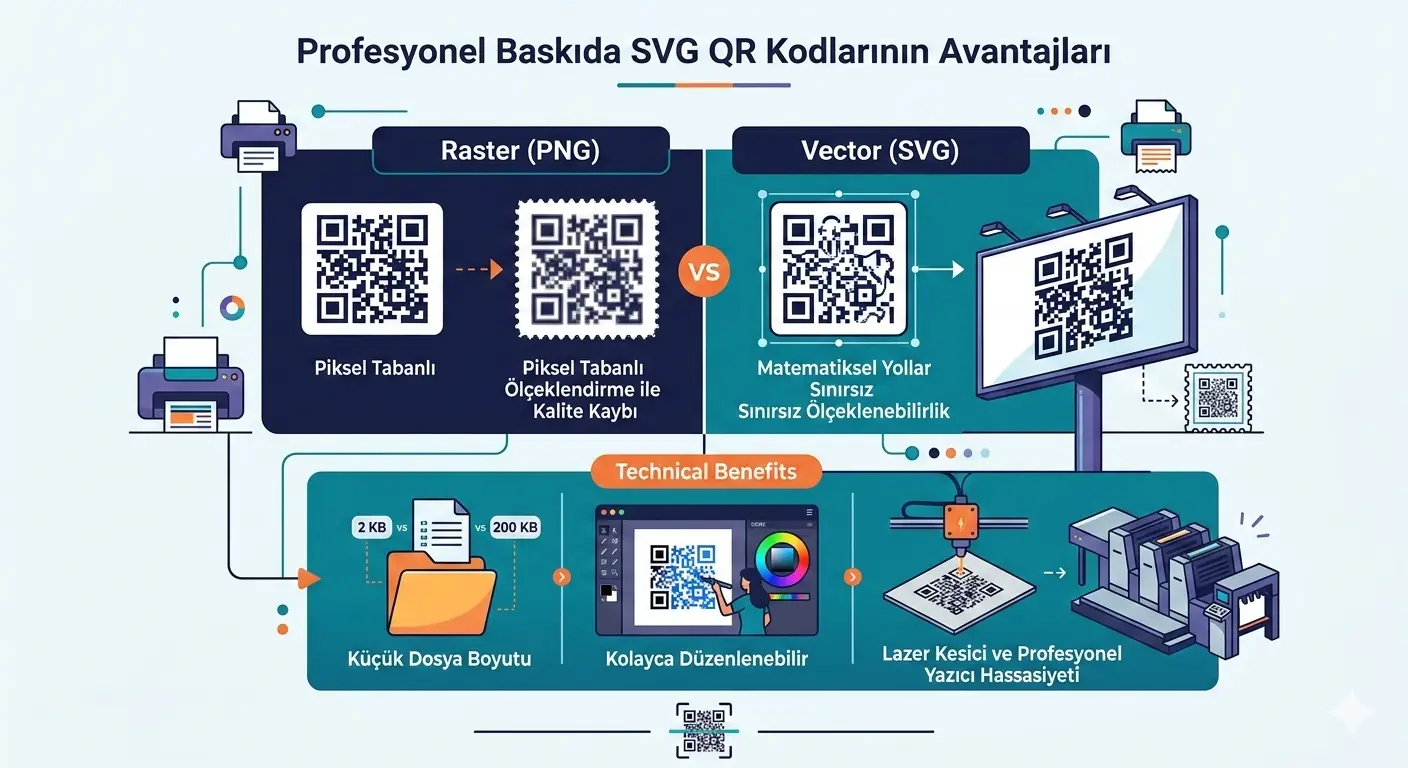
PNG and JPG store a fixed pixel grid. Enlarge them for a poster or shrink them for a carton and the RIP invents or discards pixels -- module edges soften. SVG stores geometry on a module grid so layout apps can scale to final millimetre size without a second soft bitmap -- if the SVG is true vector, not a PNG wrapper.
Prefer SVG when
Resize across SKUs
PDF/X to printer
Large display crispness
Keep a true vector asset through Illustrator, InDesign, Affinity, or PDF packaging.
PNG can still be fine when
Final size locked
Desktop label tests
Workflow forbids SVG
Pixels must map to whole modules. Document any SVG ban so the team does not screenshot the browser.
Module size and quiet zone (4 modules)
Each dark or light square is a module. Print quality is driven by physical module size on the substrate and by the quiet zone -- four modules of light margin on each side of a QR Code.
Matrix size
Know the version (for example Version 2 is 25x25 modules of data area).
Add quiet zone
+4 modules per side means +8 to width and height in module units.
Pick module mm
Choose a physical module width your press and scanners can resolve; validate on device.
Keep it square
Final width ≈ (matrix + 8) x module size. Never stretch only X or only Y.
Cropping SVG flush to finder patterns, or letting trim transparent pixels eat the margin, is a classic no-read cause. High error correction is not a license to ignore geometry -- proof the final printed piece.
The DPI myth for vectors
SVG has no fixed DPI Physical size is assigned when you place the asset in the layout. Asking what DPI is this SVG confuses raster thinking with vector files.
When DPI matters Screen previews, accidental raster effects, or RIP settings that convert vectors to dots.
Design around modules Use module size in mm and integer device dots per module at press resolution -- not an arbitrary 300 DPI SVG.
If you must raster Choose a pixel width that divides evenly by the module count including quiet zone so modules stay equal.
RIP / prepress checklist
| Check | Pass criteria |
|---|---|
| Asset type | True vector SVG/PDF paths -- not a placed low-res PNG wrapped in SVG |
| Scale | 100% uniform; measured width/height match specification |
| Quiet zone | >= 4 modules clear on all sides in the final PDF |
| Color | Dark modules on light background; CMYK conversion not washing contrast |
| Substrate | Proof on real material under scan lighting |
| Enhancement filters | Edge-smoothing / image enhance disabled for the QR region |
| Decode | Physical sample scans on target phones and industrial readers |
| Payload archive | URL/text, ECC level, and source SVG revision stored with the job |
Export from Qrivio, then place in artwork
SVG
Download SVG for press. Place at final physical size with aspect ratio locked and a light panel behind the symbol.
PNG
Quick mockups only. Prefer regenerating SVG if the layout size changes.
JPG
Use when a portal rejects transparency and requires a solid white background.
Production habit
Exact payload
SVG download
Printed proof scan
Inspect the PDF at high zoom. Transparency flattening can rasterize vectors without a clear UI warning.
Common mistakes
Browser screenshot
Stretch to rectangle
300 DPI superstition
Metallic ink or varnish can look fine to the eye and still fail under illumination. Version-control the URL with the art.