SVG QR Code Printing: Vector Geometry, DPI & Prepress Guide
A production guide for generating and printing QR Codes as SVG, with exact module geometry, viewBox behavior, physical sizing, printer-dot calculations, PDF export, rasterization traps, color, quiet zones, and proofing.
1. Why SVG Is Useful for QR
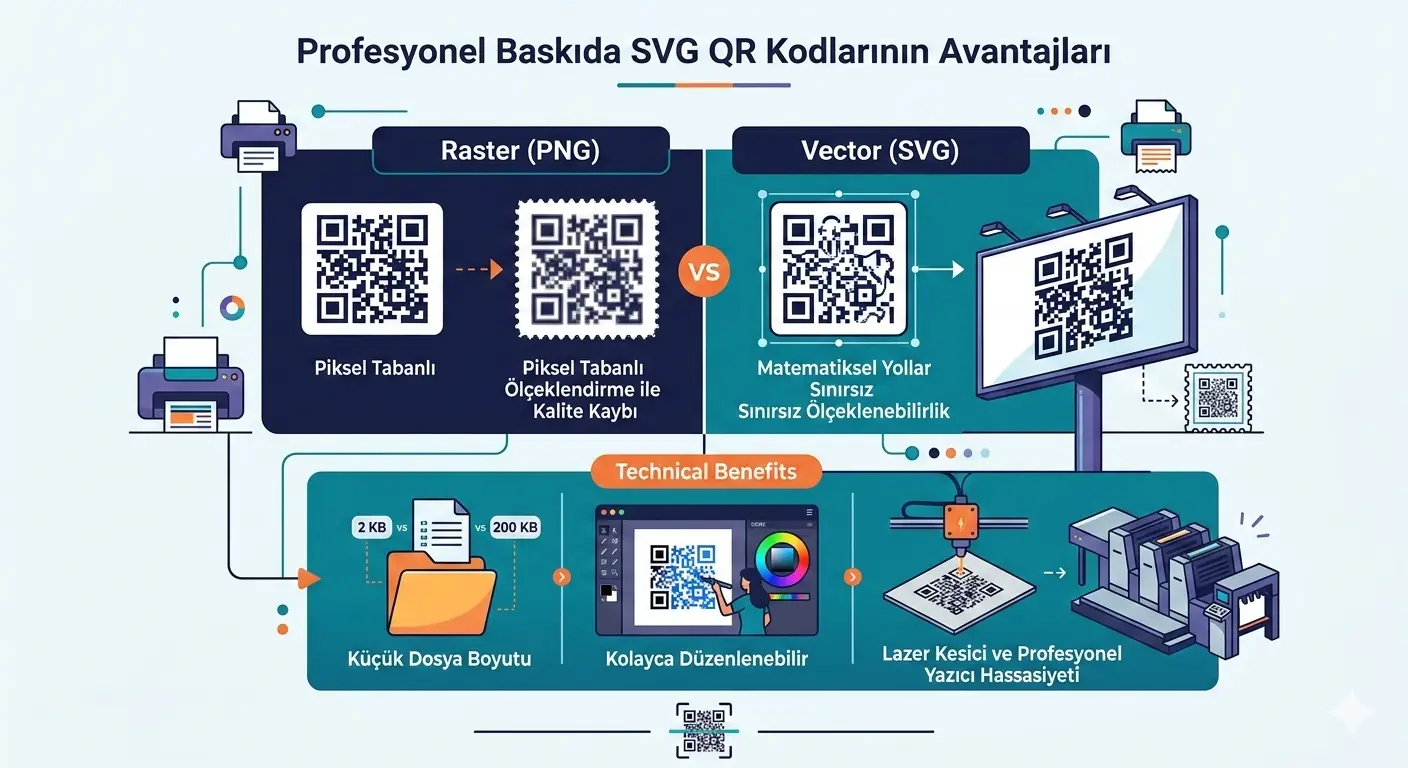
SVG stores geometry rather than a fixed pixel grid, so QR modules can remain mathematically crisp while artwork is scaled. The benefit disappears if the SVG merely embeds a low-resolution bitmap.
To create a scalable QR Code for print, use our free QR code generator and download the result as SVG for high-quality printing.
2. Coordinate System and viewBox
The SVG viewBox defines internal coordinates. A clean QR generator can map one logical module to one coordinate unit and include the quiet zone in the same coordinate system.
Geometry rule
Width and height must scale together. Never stretch a QR SVG non-uniformly.
3. Module Grid Construction
Each dark module should align to the same logical grid. Combining adjacent dark modules into paths is fine if edges remain exactly on module boundaries.
4. Physical Size from Module Count
Determine matrix size from QR version, add eight modules for the four-module quiet zone on both sides, then multiply by the chosen physical module size.
5. Printer DPI and Dots per Module
At 400 dpi, one device dot is 25.4/400 = 0.0635 mm. Four dots per module therefore gives 0.254 mm per module. Designing around whole device-dot multiples can produce cleaner rasterization.
6. SVG to PDF / RIP Pipeline
Inspect the exported PDF rather than assuming the layout application preserved vector geometry. Some workflows rasterize effects, transparency or placed assets.
7. Rasterization Traps
| Trap | Effect | Prevention |
|---|---|---|
| Low-res preview exported | Blurred edges | Keep original vector asset. |
| Fractional pixel scaling | Uneven modules | Use integer pixel/module for raster outputs. |
| Screenshot workflow | Unknown resolution | Export directly. |
| Image compression | Artifacts | Use lossless/vector output. |
8. Color and Reflectance
Dark modules on a light background are the safest arrangement. Metallic inks, transparent films and glossy laminates can change scanner illumination behavior even when the artwork looks high contrast to the eye.
9. Quiet Zone in Artwork
Include the quiet zone in the asset or enforce it in the layout template. Cropping tools and automatic trim-transparent-whitespace features can accidentally remove required clear space.
10. Logo and Branding Overlays
Branding inside a QR Code increases risk. Never cover finder patterns, and do not assume a high error-correction setting guarantees success. Validate the final branded artwork across multiple devices and print samples.
11. Prepress Proof Checklist
| Check | Method |
|---|---|
| Physical dimensions | Measure final PDF/print. |
| Module squareness | Inspect at high zoom. |
| Quiet zone | Measure all four sides. |
| Contrast | Test final ink/substrate. |
| Decode | Scan physical samples, not only screen. |
12. Release Workflow
Archive the payload, QR settings, source SVG, approved PDF and proof result together. That makes later reprints auditable and prevents an old or differently encoded symbol from re-entering production.
13. Integer Module Rendering
When raster output is unavoidable, each module should ideally map to an integer number of pixels. If a 29-module matrix is scaled to a width that produces 3.7 pixels per module, the rasterizer has to alternate between different pixel widths, creating uneven geometry that can reduce robustness.
14. Path Consolidation vs Individual Rectangles
An SVG may represent each dark module as an individual rectangle or merge adjacent modules into larger paths. Both can be correct. What matters is that every edge stays exactly aligned to the logical module grid and that the quiet zone remains explicit.
15. Prepress Color Management
Converting RGB artwork to CMYK can alter dark/light reflectance relationships, especially with colored modules. For mission-critical print, evaluate the final ink/substrate combination rather than assuming visually dark colors will behave equivalently under scanner illumination.
16. SVG Units and Physical Dimensions
SVG width and height attributes can use CSS pixels, millimetres, points or other units, while the viewBox remains unitless. For print workflows, defining intended physical dimensions explicitly can reduce ambiguity when the asset moves between browser, layout and PDF applications. Always verify the final measured size because software may apply its own default DPI assumptions when converting CSS pixels to print units.
17. RIP and Printer Calibration
Even perfect SVG geometry is eventually converted into printer dots. RIP settings, scaling, smoothing and printer calibration determine how those vectors become physical ink or toner. A controlled print workflow locks scaling to 100%, disables image-enhancement features that alter edges, and verifies output after any driver, RIP, firmware or printer change.
18. Production File Integrity
Once QR artwork enters a packaging or print workflow, version control becomes important. The source SVG, the layout document, the exported PDF, and the printed piece can all diverge if someone rescales, recolors, crops, or replaces the asset. Store the approved payload and source SVG together and use a file-naming or revision system that makes accidental substitution obvious.
Automated preflight can catch several common problems before printing: missing quiet zone, unexpected physical dimensions, low raster resolution, non-square scaling, or a QR asset that decodes to a different payload than the approved source. These checks are especially useful in high-volume packaging environments where manual visual inspection is unreliable.
After printing, keep at least one approved physical sample or verifier record for important production runs. If scanners later report problems, comparing the failing piece with the approved sample helps determine whether the issue comes from artwork, printer drift, substrate variation, damage, or a downstream scanning change.
Related Guides
Continue with closely related technical references.